
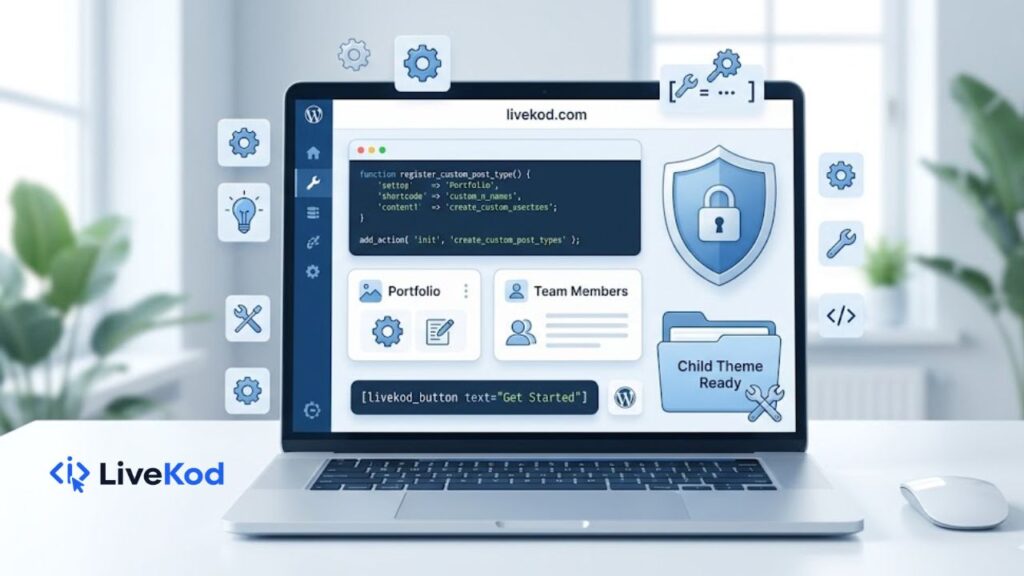
WordPress is flexible because it can be customized in many ways. You can add shortcodes, register custom post types, create taxonomies, adjust WooCommerce labels, improve security, or place a website in maintenance mode. The challenge is that many beginners do not want to write PHP code from scratch, and even experienced users often want a faster starting point.
That is where WordPress code generator tools become useful. On livekod.com WordPress Tools, users can create practical snippets and starter code for common WordPress tasks. These tools do not replace careful testing, but they help users begin with cleaner structure and save time during routine setup work.
Why WordPress Tools Are Helpful
Most WordPress changes should be planned before they are added to a live website. A small code change can affect layout, plugin behavior, theme output, or admin settings. When a tool gives you a structured snippet, it becomes easier to review the code, copy it into WPCode or a child theme, and test it step by step.
For learning and reference, the official WordPress Developer Resources are useful because they include documentation for functions, hooks, themes, plugins, APIs, and code reference material. Beginners can use a generator for speed and then check official documentation when they want to understand how the code works.
External reference: WordPress Developer Resources.
Start With Simple Customizations
The best way to use WordPress tools is to start with small changes. For example, a simple shortcode, a WooCommerce button text change, or a maintenance mode snippet is easier to understand than a large custom plugin. After the small change works, you can move toward more advanced generators.
Here are a few beginner-friendly tasks that can be handled with livekod.com tools:
- Create reusable content snippets with the WordPress Shortcode Generator.
- Change store button labels with the WooCommerce Add to Cart Text Changer.
- Temporarily pause public access with the WordPress Maintenance Mode Code Generator.
- Turn off unwanted discussions using the Disable Comments Snippet Generator.
Use Shortcodes for Reusable Content
Shortcodes are useful when you want to place the same output in different pages or posts. A shortcode can show a message, button, form area, call-to-action block, or small custom feature. Instead of repeating the same HTML or PHP again and again, you can insert a shortcode wherever it is needed.
The WordPress Shortcode Generator can help create a basic shortcode structure. After generating the code, paste it into a safe snippet manager or child theme, then test it on a draft page before using it across the site.
Create Better Content Organization With CPTs and Taxonomies
Some websites need more than normal posts and pages. For example, a tools website may want separate content types for tools, resources, reviews, tutorials, or documentation. A custom post type can keep this content organized, while a custom taxonomy can group it in a cleaner way.
For this type of work, use the Custom Post Type Generator and the WordPress Taxonomy Generator. These tools can create starter code for labels, slugs, public settings, menu behavior, and supported features.
For example, a website that publishes many guides can keep tutorials separate from normal blog posts. A website that publishes many tools can group tools by purpose, such as SEO Tools, Developer Tools, or Web Tools. This improves browsing and helps users find the right content faster.
Use WPCode and functions.php Snippets Carefully
Many WordPress users prefer using WPCode because it keeps snippets organized in the dashboard. Others prefer adding small snippets inside a child theme. Both methods can work, but users should avoid editing a parent theme directly because updates can overwrite changes.
The WPCode Snippet Generator is helpful when you want a snippet that can be pasted into WPCode. The functions.php Code Generator is useful when you need starter code for theme-level customizations.
Before using any generated code, follow this simple checklist:
- Backup the website or test on a staging version first.
- Read the generated code and remove anything you do not need.
- Paste the snippet into WPCode, a child theme, or another safe location.
- Test the change on desktop and mobile before publishing it widely.
- Keep notes about what each snippet does so it is easy to manage later.
Build Safer Customizations With a Child Theme
A child theme is useful when you want theme customizations that survive parent theme updates. It can hold custom CSS, template changes, and functions.php snippets. For a beginner, creating a child theme manually can feel confusing, especially when the stylesheet and parent theme details must be correct.
The Child Theme Generator can help create a basic child theme setup. After creating the files, upload the child theme, activate it carefully, and check that the website design still looks correct.
Improve Security and Maintenance Workflow
WordPress maintenance is not only about adding features. It is also about protecting the website and managing changes properly. Simple security snippets may help with basic hardening, while maintenance mode snippets can show a clear message when major changes are being made.
For these tasks, try the WordPress Security Snippet Generator and the WordPress Maintenance Mode Code Generator. These pages can support simple site management tasks and help beginners understand what kind of code is commonly used for WordPress control and protection.
Connect WordPress Tools With SEO and Content Work
WordPress customization should support content and SEO goals. If a website has better custom post types, cleaner snippets, and organized tool pages, the next step is to improve titles, descriptions, and internal links. For example, after publishing a new tool page, check the title with the Meta Title Checker and preview search snippets with the SERP Preview Tool.
Content teams can also use the Word Counter when writing posts and the Online Notepad for drafting simple notes before adding content to WordPress.
Final Thoughts
WordPress tools can save time, reduce confusion, and give users a cleaner starting point for customization. The key is to use them carefully. Generate the code, review it, test it, and keep only what your website really needs. With the right workflow, tools like shortcodes, custom post types, taxonomies, WPCode snippets, child themes, security snippets, and maintenance mode code can make WordPress easier to manage.
For more utilities, explore the main livekod.com tools homepage or browse the full WordPress Tools section.