
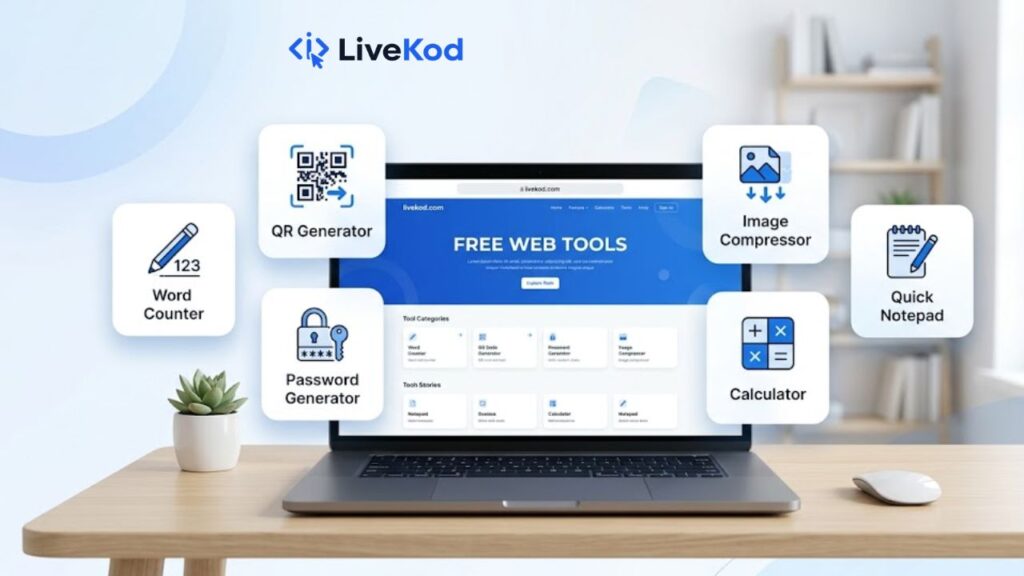
Simple online tools can save a lot of time when you are writing content, preparing a website, working with images, creating passwords, or checking small calculations. Instead of installing a separate app for every small task, you can open the free Web Tools section on livekod.com and use fast browser-based utilities whenever you need them.
This guide explains how different web tools can help bloggers, freelancers, students, website owners, and small business users complete everyday online tasks more quickly. The goal is not to make your workflow complicated. The goal is to keep useful tools in one place so you can copy, count, convert, compress, calculate, and create without wasting time.
Why free web tools are useful for everyday work
Most people do not need heavy software for small online tasks. A blogger may only need to check word count before publishing a draft. A marketer may need a QR code for a landing page. A website owner may need to compress an image before uploading it. A student may need a quick percentage calculation. For these tasks, lightweight web tools are faster than opening desktop programs.
The best web tools should be quick, simple, and easy to understand. They should reduce steps instead of adding more work. On livekod.com, the tools are organized for common needs, including writing, text formatting, image handling, security, QR creation, calculations, and quick notes.
1. Use a word counter before publishing content
A good article, product description, social post, or page introduction often has a target length. If the content is too short, it may not explain the topic clearly. If it is too long, readers may lose interest. The Word Counter tool helps you quickly count words, characters, sentences, and paragraphs before you publish.
This is useful for blog introductions, SEO descriptions, guest posts, school assignments, email drafts, and any text where length matters. For better content planning, you can also use it while editing old posts on the livekod.com Blog or preparing new website pages.
2. Check character limits for SEO and social media
Many online platforms have character limits. Meta titles, meta descriptions, captions, bios, tweets, ad copy, and short descriptions all need controlled length. The Character Counter tool helps you check letters and characters instantly so your text does not get cut off.
For website owners, character counting is especially useful when writing meta titles and descriptions. You can combine this with the SEO Tools section to improve page snippets, preview search results, and keep your on-page SEO cleaner.
3. Format text quickly with a case converter
Text formatting mistakes are common when content is copied from different sources. Some headings may be all uppercase, some lines may be lowercase, and some titles may not look consistent. The Case Converter tool helps you convert text into uppercase, lowercase, sentence case, title case, and other useful formats.
This is helpful for bloggers, editors, students, and anyone preparing clean text for a website. A consistent text style makes your content look more professional and easier to read.
4. Generate stronger passwords for safer accounts
Weak passwords create unnecessary risk for websites, email accounts, admin dashboards, and online tools. A password should be difficult to guess and should not be reused across important accounts. The Password Generator tool helps you create strong random passwords with custom options.
If you manage a WordPress website, password hygiene is only one part of basic security. You can also explore the WordPress Security Snippet Generator for simple WordPress hardening snippets.
5. Create QR codes for links and campaigns
QR codes are useful when you want people to open a link from a poster, flyer, package, business card, classroom slide, restaurant menu, or offline campaign. The QR Code Generator lets you generate a QR code from text or a URL without installing extra software.
Small businesses can use QR codes to link to contact pages, product pages, booking pages, discount pages, or helpful resources. Bloggers can use them in downloadable PDFs or presentations to send readers back to a specific article.
6. Compress images before uploading them
Large images can slow down a website and make pages feel heavy, especially on mobile devices. Before uploading images to a blog post or landing page, it is smart to reduce file size where possible. The Image Compressor can help reduce image size quickly while keeping usable quality.
For deeper performance checking, you can also test important pages with Google PageSpeed Insights, which gives performance suggestions for web pages. After checking performance, you can return to livekod.com tools to handle quick fixes such as image compression, text cleanup, and content checks.
7. Calculate age, dates, and simple values quickly
Date and number calculations appear in many small tasks. You may need to calculate age for a form, estimate years of experience, or check a date-based value. The Age Calculator helps calculate exact age from date of birth in a simple way.
For number-based tasks, the Percentage Calculator helps calculate discounts, increases, decreases, scores, margins, and basic percentage values. These tools are useful for students, shop owners, bloggers, and anyone preparing quick calculations online.
8. Convert units without searching again and again
Unit conversion is another common task. You may need to convert length, weight, temperature, volume, or other values while writing content, preparing product details, or working on a project. The Unit Converter keeps common conversions simple and accessible.
A unit converter is especially useful when your audience comes from different countries. You can quickly convert values and make your content more understandable for readers in different regions.
9. Keep quick notes in your browser
Ideas often come while browsing, researching, editing a page, or planning content. Instead of opening a heavy writing app, you can use the Online Notepad to write and edit quick notes directly in your browser.
This is useful for saving title ideas, keyword ideas, content outlines, code notes, reminders, or short drafts. After collecting ideas, you can turn them into blog posts, website updates, or tool improvement notes.
10. Build a faster daily workflow with one tools hub
The main benefit of using a tools hub is speed. You do not need to remember separate websites for every small task. You can visit the Web Tools page and choose the utility you need. If your work also includes SEO, coding, or WordPress setup, you can move between SEO Tools, Developer Tools, and WordPress Tools from the same website.
Practical workflow example
Here is a simple example of how a blogger or website owner can use livekod.com web tools in one workflow:
- Draft the article outline in Online Notepad.
- Use the Word Counter to check content length.
- Use the Character Counter to check title and description length.
- Fix capitalization with the Case Converter.
- Compress the blog image with the Image Compressor.
- Create a QR code with the QR Code Generator if you want to share the page offline.
Final thoughts
Free web tools are valuable because they remove friction from everyday tasks. Whether you are writing a blog post, editing text, generating a secure password, creating a QR code, compressing images, or calculating values, small utilities can save time and reduce mistakes.Start with the livekod.com Web Tools category and explore the tools that match your workflow. If you need a tool that is not available yet, you can send your idea through the Request a Tool page and help improve the livekod.com tools library.